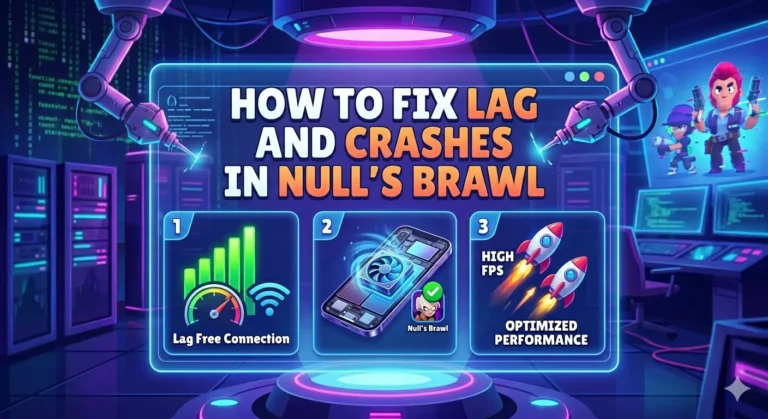
How to Fix Lag & Crashes in Null’s Brawl
If you’re facing lag, freezing, or crashes in Null’s Brawl, you’re not alone. Many players experience performance issues, especially on low-end or overloaded devices.
The good news? You can fix almost all of these problems with a few simple tweaks.
In this guide, you’ll learn proven methods to reduce lag, boost FPS, and stop crashes in Null’s Brawl on both Android and iOS.
Why Does Null’s Brawl Lag or Crash?
Before fixing the issue, let’s quickly understand the main causes:
👉 Identifying the cause helps you apply the right fix faster.
📱 Minimum Requirements (Must Check First)
To run Null’s Brawl smoothly, your device should meet these:
✅ Android:
✅ iOS:
⚠️ If your device is below these specs, expect lag unless you use low settings.
15 Best Ways to Fix Lag & Crashes in Null’s Brawl
To run Null’s Brawl smoothly, your device should meet these:
1. Update to Latest Version (Most Important)
Outdated versions cause 90% of lag and crash issues.
- Always download the latest version from a trusted source
- Uninstall old version before installing new one
✅ New updates = bug fixes + better performance
2. Clear Cache (Instant Speed Boost)
For Android:
- Go to Settings → Apps → Null’s Brawl
- Tap Storage → Clear Cache
⚠️ Don’t click Clear Data unless necessary
For iOS:
Reinstall the game to clear temporary files
3. Close Background Apps
Running apps consume RAM and slow your game.
✔ Before playing:
- Close all apps
- Stop downloads
- Avoid YouTube, TikTok, Instagram
👉 More free RAM = smoother gameplay
4. Fix Your Internet Connection
Lag isn’t always device-related; it’s often network lag.
✔ Try this:
- Use Wi-Fi instead of mobile data
- Restart your router
- Stay close to router
- Turn off VPN
🔥 Stable internet = no delay or ping issues
5. Lower Graphics Settings
If your device struggles, reduce load:
- Set graphics to Low
- Disable shadows & effects
- Turn off high FPS mode
👉 This alone can double your performance
6. Turn Off Battery Saver Mode
Battery saver limits CPU performance.
✔ Disable it:
- Settings → Battery → Turn OFF Power Saving
⚡ Full power = better gaming performance
7. Free Up Storage Space
Low storage = slow device = laggy game
✔ Clean your phone:
- Delete unused apps
- Remove old videos/photos
- Clear downloads & APK files
🎯 Keep at least 1GB free space
8. Prevent Overheating
Overheating causes FPS drops and crashes.
✔ Tips:
- Don’t play while charging
- Remove phone cover
- Take short breaks
🔥 Cooler phone = stable performance
9. Use Game Booster (Optional)
Game boosters optimize performance automatically.
Popular options:
- Game Booster (Samsung)
- Game Turbo (Xiaomi)
- Game Space (Realme/Oppo)
👉 Helps reduce background lag
10. Enable High Performance Mode
Some phones have built-in performance modes.
✔ Turn it ON for:
- Better FPS
- Faster processing
11. Fix Corrupted Game Files
If your game crashes repeatedly:
✔ Do this:
- Uninstall the game
- Download fresh APK
- Reinstall clean version
👉 Fixes hidden bugs instantly
12. Reduce Animations (Android Trick)
Boost device speed using Developer Options:
- Go to Settings → About Phone
- Tap Build Number 7 times
- Open Developer Options
Set these to 0.5x:
- Window Animation Scale
- Transition Animation
- Animator Duration
⚡ Makes your phone feel faster instantly
13. Switch Network Type
If lag continues:
- Try 5GHz Wi-Fi
- Switch to mobile data
- Avoid crowded networks
14. Restart Your Device
Simple but powerful fix:
✔ Restart clears:
- Temporary files
- RAM usage
- System glitches
15. Use Stable APK Version Only
Not all mod versions are optimized.
👉 Always use:
- Latest version
- Trusted website
- Stable release (not beta)
Frequently Asked Questions
Final Thoughts
Lag and crashes in Null’s Brawl can be frustrating, but they’re usually easy to fix if you follow the right steps. Start by updating the game to the latest version, clearing the cache, and closing any background apps to free up system resources.
Once you’ve done the basics, you can apply advanced tweaks to further improve performance. By keeping your device optimized, you’ll be able to enjoy smooth, lag-free gameplay every time.